
Turbo Loader – Bulk Upload Utility for Autodesk Vault
Autoloader on steroids.
Turbo Loader has been designed to accelerate the bulk upload of files into Autodesk Vault. It helps you resolve xReferences, update file versions in Vault, and assign the correct categories, lifecycles and revisions.
It recognises every file your Vault already holds – every version, even the ones that moved. It skips the unchanged, up-revs the updated, re-links the references, and loads only what's genuinely new. Nothing in the standard toolset does that.
Sound familiar?
If you load contractor packages into Vault – or you're staring at twenty years of network drives – you've probably said one of these out loud.
“It can't be checked in – an xref of an xref of an xref has a problem.”
One missing reference three levels deep, and the whole drawing package is stuck. The fix? Open each file in CAD, repair, save, re-scan. File by file.
“The return package has 4,000 files. Vault already holds 3,800 of them.”
Contractor packages come back mostly unchanged, and updated folders have to land on top of live Vault data. Out of the box there's no way to do that – the workaround is checking files out, swapping them on disk and checking them back in through CAD, one at a time.
“Find Duplicates gave me a spreadsheet. The fix is still one file at a time.”
Years of copy-paste design means thousands of true duplicates. The standard workflow flags them, then leaves you clicking through Where-Used lookups for weeks.
“The bundled tool wants batches of 5,000 files. We've got 300,000.”
The maths turns one migration into sixty hand-managed batches – and when a permission problem surfaces halfway through batch forty, you find out then, not before you started.
None of this is your team being sloppy. It's what happens when tooling designed around batches of a few thousand files meets twenty years of real engineering work.


What changes on transmittal day
The Tuesday-morning version: a contractor package arrives, and instead of a week of file archaeology, this happens.
- The contractor package – ZIPs included – is scanned in minutes, before anything touches Vault.
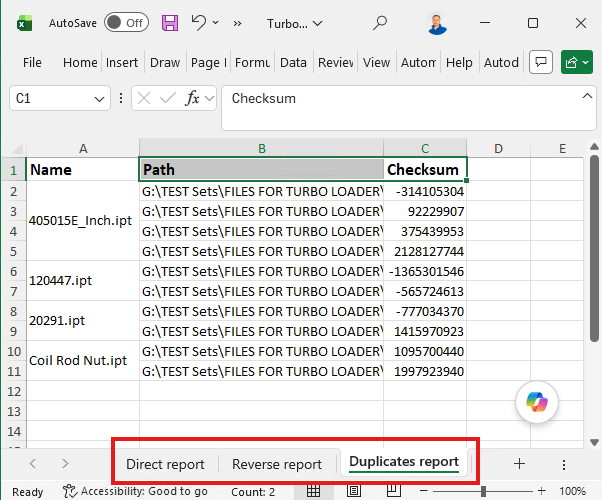
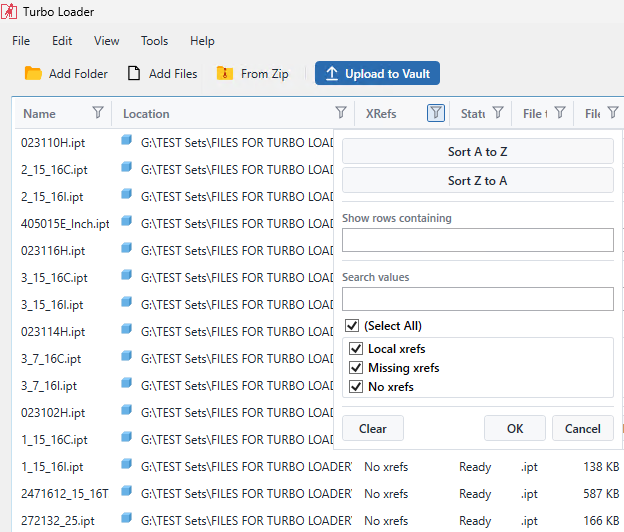
- Every duplicate, missing reference and property gap shows up in one colour-coded report.
- Files Vault already holds are recognised – unchanged ones skipped, updated ones land as new revisions on top of the old.
- Clean files load. Incomplete files upload flagged for later fix instead of blocking the batch.
- The contractor gets an Excel report listing exactly which files to fix and why. You stop playing messenger.
- Revisions are read straight off the title block, so what's in Vault matches the drawing.
Scan. Review. Assign. Upload.
Three steps. The first one's free, and it usually tells you things about your data you didn't know.
Step 1
Scan fast
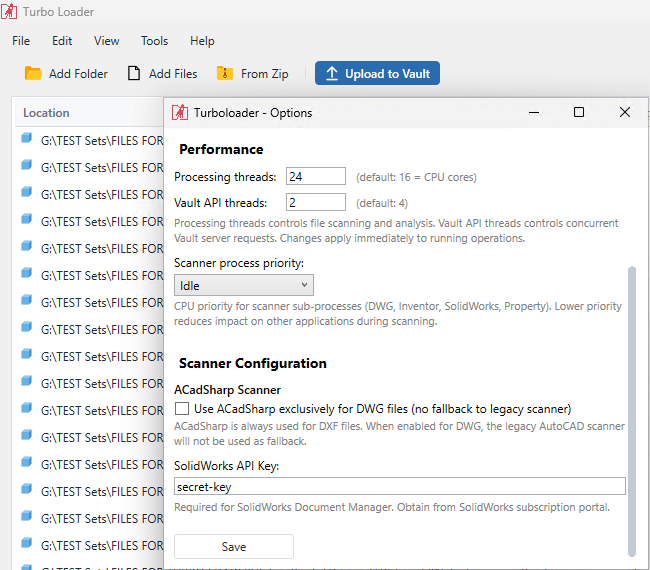
Point it at folders, drives or contractor ZIPs. Parallel scanning scales with your CPU cores – several times faster than the standard route – and maps every xReference in the package, including those that are already in Vault. It resolves xReferences automatically: from the local folder, and from the files already sitting in your Vault. Nothing is uploaded yet; nothing leaves your network.
Step 2
Deduplicate and map to the right location
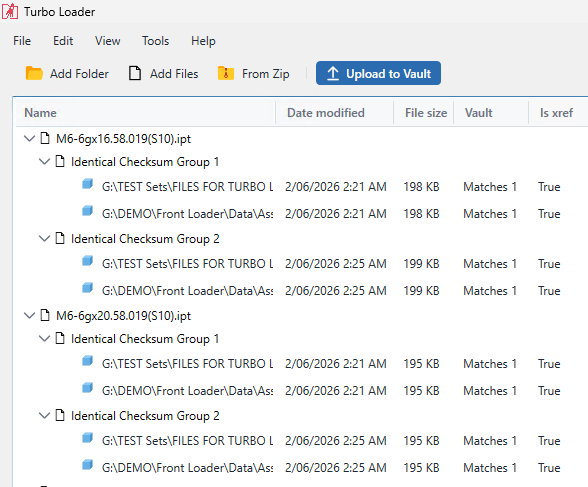
Inside the incoming set, identical files are found by SHA-256 checksum – content, not filenames, so the same drawing under six different names collapses into one group. It also finds the file versions already sitting in your Vault that are absolutely identical, so you don't load them twice. Missing references are located and re-linked with your confirmation.
Step 3
Assign categories, lifecycles and revisions
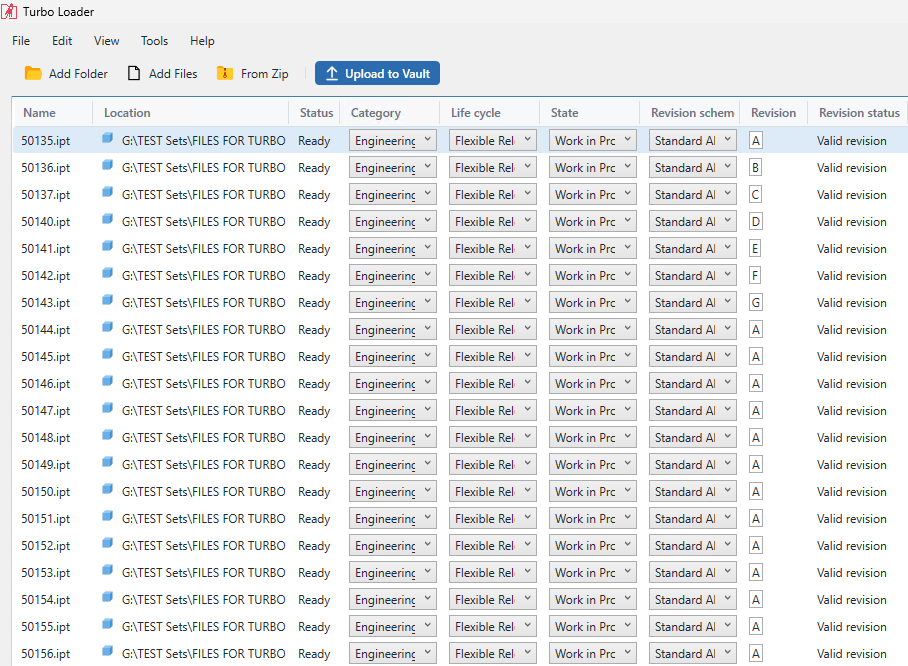
Assigning correct revisions is one of the most important steps in any document control process. That's why we let you set revisions before files land in Vault, so they're right from the start – and Turbo Loader can extract revisions straight from file properties and title blocks. It reads your Vault configuration and applies its categorisation rules to assign categories, lifecycles, default lifecycle states and revision schemes.
Step 4
Upload
Clean files go in. Files with a missing reference upload flagged instead of blocking the package. Assemblies and parts that reference each other – the case that defeats ordered upload – resolve automatically. Interrupted halfway? Run it again: anything already in Vault is detected and skipped, so you never redo work that already landed.

Automated with AI
AI-powered upload
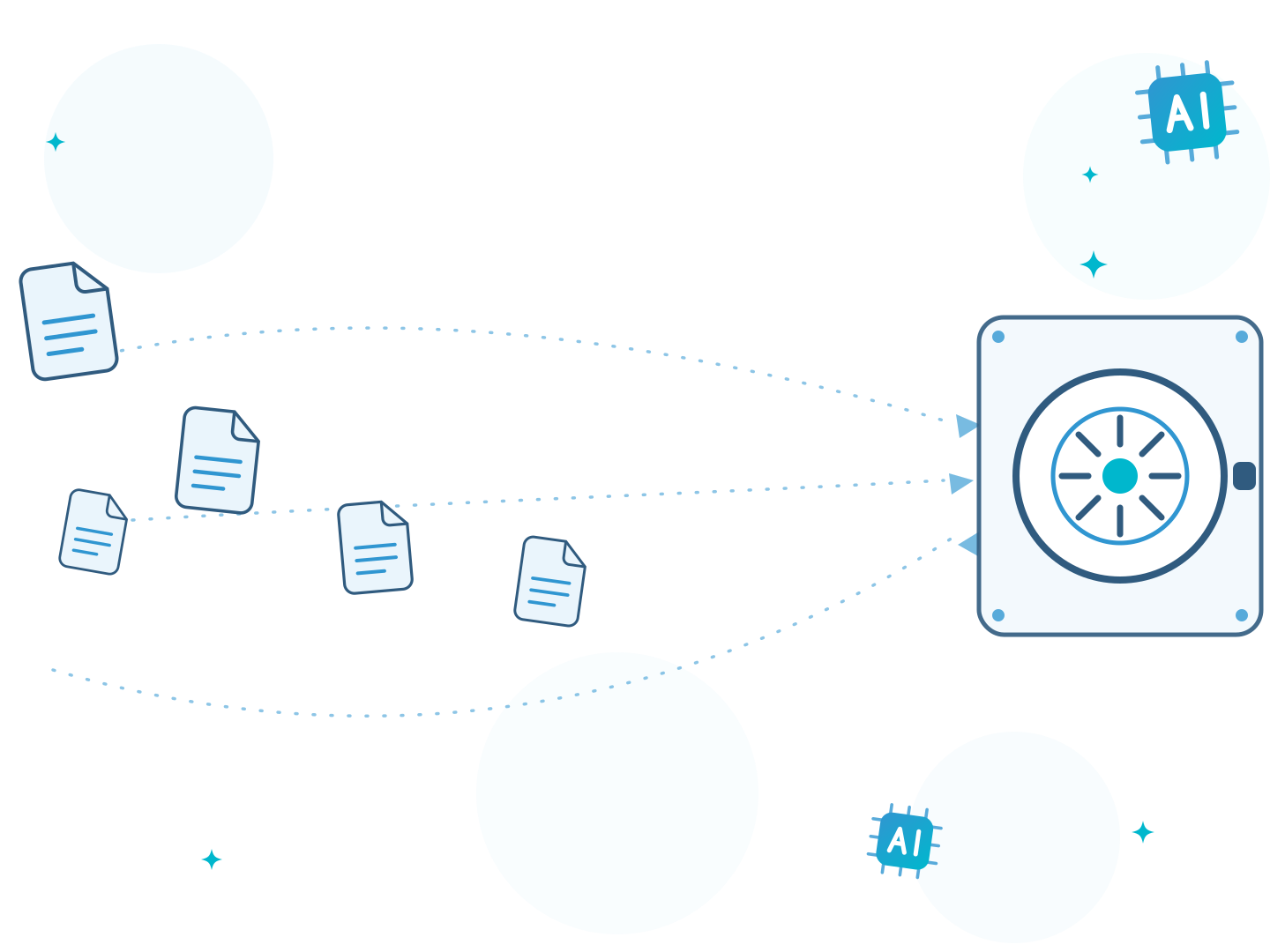
Turbo Loader ships an MCP server, so your AI session can drive the whole upload from a conversation – folder mapping, naming, references, categories and revisions – while you set the rules in plain English.
Your AI session runs the upload
Turbo Loader ships an MCP server, so the AI you already use can drive the whole run from a conversation – mapping folders to Vault locations and renaming files on the fly, like stripping the _A revision suffix off every file name.


References and duplicates, sorted for you
The session works through everything the scan finds: references matched and re-linked, duplicate groups resolved, and anything questionable flagged for your decision instead of quietly uploaded.
Rules in plain English
Categories, lifecycles and revisions follow rules you state once, in plain words – "everything from this subcontractor lands as Work in Progress under Project X" is all it takes.
It checks your Vault before it decides
Working alongside ModernCAD Vault AI, the session browses your Vault first – exploring the right locations and what's already there – and only then starts moving files.
Because it's bring-your-own-AI, the whole process can run hands-free. Give your session a skill – clear instructions for packages from a specific designer or subcontractor: how files are named, where they land in each project space, which checks run, what gets renamed and what gets flagged. Loading a package – naming, categorisation, alignment with what's already in your Vault – becomes something you review, not something you do.


What's actually in it
The four steps above are the shape of a run. This is the detail underneath – for the person who has to explain internally why this tool and not the one that came in the box.
A powerful scanner that processes a large number of files with ease
Point it at folders, drives or contractor ZIPs and the whole package is mapped before anything touches Vault. Scanning runs across every core you give it – what turns an overnight job into a coffee break.
Identical duplicates gone in one command
Matching checksums group automatically, so the same drawing saved under six names becomes one group. One command clears every identical duplicate across the set.
Near-duplicates left to your judgement
Similar but not identical? Nothing is deleted on your behalf. The grid puts last modified date, file size and full location side by side, so you pick the one that survives.
xReferences resolved as it scans
References inside the package are matched and re-linked as it scans. References to drawings you already hold resolve against Vault itself, so you never upload a second copy just to satisfy a link.
It knows what your Vault already holds
Exact matches are found inside each file's version history, not just against the latest version. Files already there can be skipped entirely, and their references still resolve to the copy in Vault.
Destinations mapped folder by folder
Map a local folder to any Vault folder and everything beneath inherits it; override any subfolder or file to send it elsewhere. Your permission on each target folder is checked up front – you hear about a locked folder before the run, not forty minutes into it.
Skip or up-rev, file by file
Where a file already exists at the destination, skip it or up-rev it – decided per file. Up-rev checks out, loads the new version and checks back in, without the round trip through CAD that normally makes this one file at a time.
Categories and lifecycles from your own Vault
It reads your Vault's own categories, lifecycles and revision schemes, then runs your admin's categorisation rules to predict each file's category before anything loads. Override any of it by hand – and if your account can't set a state like Released, you find that out while you're still setting up.
Revisions read off the drawing
Revisions are read from title blocks and file properties using the mappings your Vault already defines, so the letter appears against the file on its own. Where there's nothing to read, set it yourself – one file, or a whole selection in bulk.
Incomplete packages: reported, then your call
The out-of-the-box tools refuse to upload a file with missing references at all. Turbo Loader reports every one first so you can hunt them down – and when a reference genuinely can't be recovered, the file still goes in, carrying a comment that marks it incomplete for whoever opens it next. The data is preserved as it is, instead of stranded on a network drive because one link broke.
Where it comes from
Turbo Loader is a spin-off of our Data Migration Service – the same cleansing-first approach we use on enterprise migrations, packaged so your team can run it without us. It was designed for document controllers first, because contractor uploads never stop.
One of the biggest benefits we are now experiencing is having our data cleaned.
Pay as you go – install free, pay for what you upload
There's no seat licence to buy before you can start. Install Turbo Loader for free, scan and clean as much data as you like, and pay only for the files that actually land in Vault.
How it works: you top up a balance of upload tokens, and a token is spent when a file is uploaded into Vault. Files that get skipped as unchanged don't cost you anything – so a re-run over the same folder is close to free, and you're never paying for shelfware between migrations.
- Scanning, cleaning and every report – free, at any scale. You only pay at the point files go in, so you can size the job before you spend anything.
- Scheduling, custom property mappings and the category, lifecycle and revision assignment are Professional-only, because Vault Professional exposes the APIs they need and Vault Basic doesn't have those concepts at all. That's a Vault limit, not a feature we're holding back to sell you an upgrade. Everything else – scanning, deduplication, reference repair, bulk upload – runs the same on both.
- Your balance works across whichever year's Turbo Loader build you run – but the install still has to match your Vault client year (Turbo Loader 2025 needs Vault Client 2025).
- Test on a real folder structure before you spend a thing – the install and the scan are free, so you see exactly what would upload first.
From the library
Real loading and migration scenarios from our blog – the practical side of everything on this page.
Questions we actually get
Get Turbo Loader on your Vault
Request access and we'll set the install up against your Vault client year, then run the first scan with you – so you see exactly what would land before anything uploads.
Request access