


Vault AI · The Autodesk Vault MCP server
Manage Autodesk Vault with AI.
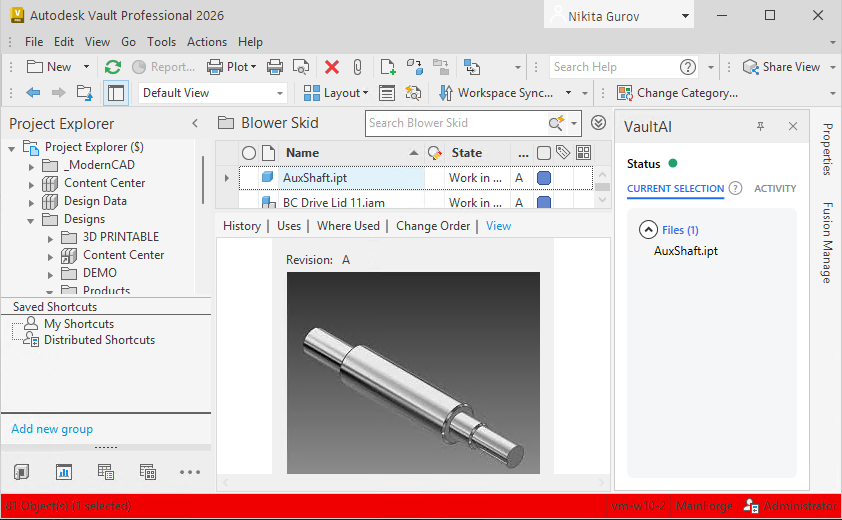
Integrated straight into Autodesk Vault Explorer – the AI panel sits beside your files, aware of whatever you've selected.
Vault AI lets your AI work directly in Autodesk Vault using plain English. Find files, update properties, check designs in and out, and manage change orders – without repetitive manual work.
All of Vault, exposed to AI
Vault AI is an MCP server – the Model Context Protocol bridge between your AI session and Autodesk Vault – and it covers the system end to end. Files and folders, properties, items and BOMs, lifecycles, revisions, numbering, change orders, jobs and permissions: it reads them, creates them, changes them. If it's in Vault, your AI can work with it.
Like every bridge on the platform, it's not a thin wrapper around the API. The commands are built workflow-first – designed to live inside an AI session, so the AI gets Vault work done in real moves, with anything destructive gated behind explicit confirmation.
What people use it for
- Find things by asking – property and full-text search across the vault, in plain English.
- Files handled properly – check in, check out, upload with external references intact, download, walk the version history.
- Properties fixed in bulk – read and write file and item properties across whole folders, not one dialog at a time.
- Items, BOMs and links – read and edit item masters, compare BOMs, keep item-file links straight.
- Change orders, routed – create them, attach the files, send them through the approval workflow.
- Lifecycle, revisions and numbering – transition states, bump revisions, and pull numbers from your own numbering schemes.
Ask. Watch. Approve.
- 1
Ask
Plain English, in the same AI client that drives Inventor AI. “Find every released drawing on project 4120 with the old title block, and fix the project code.” It recalls your conventions from the knowledge base before it touches anything.
- 2
Watch
It works your live Vault – searching, checking out, editing properties, routing change orders. Anything destructive requires an explicit confirmation first; it never deletes on a guess.
- 3
Approve
You review what changed. The conventions it learns – how you number, how you file, what your states mean – land in the same knowledge base the rest of the platform shares.
Design and data, one conversation
On its own, Vault AI clears the data-management week. Together with Inventor AI, it closes the whole loop: describe the part, watch it get modelled, then – in the same chat – fill in the properties, check it into Vault, assign the number and route the change order.
And both sides share one memory. The conventions your team teaches the AI – numbering, filing, lifecycle habits – live in the platform's knowledge base, so what Vault AI learns, Inventor AI already knows. It doesn't forget, and it doesn't resign.
The questions Vault people ask first
Put your Vault behind plain English
Request access and try it on your own Vault – start with the searches and property fixes you've been putting off. Part of the Foundation subscription, together with Inventor AI.
Request access